
VS Code + Copilot vs Cursor vs VS Code + Claude
Which IDE should we use in 2026?

Intro
Choosing an Integrated Development Environment (IDE) is no longer just about syntax highlighting and code completion, it’s about AI capabilities that can fundamentally change how you write code. The rise of AI-powered coding assistants has transformed the development landscape, making intelligent code generation and context-aware suggestions essential features rather than nice-to-haves. Yet this explosion of AI tools has created a new dilemma for developers: which IDE should we actually use?
In this article, I’m comparing three solid contenders:
VS Code with GitHub Copilot – an AI-powered coding assistant developed by GitHub and OpenAI
Cursor – the AI-native IDE built specifically to leverage modern code generation models
VS Code with Claude - Anthropic UI extension of Claude Code
I’ve chosen and tested these because I believe they represent three of the best options for developers who want to keep control while embracing AI-assisted development.
Switching IDEs is a significant decision that goes far beyond simply downloading new software. For developers, an IDE becomes muscle memory: keyboard shortcuts, workflow patterns, and cognitive habits that have been built over years and drastically affect productivity.
Until recently, I was firmly entrenched in VSCode, which I had worked with for years. Before that, I cut my teeth on Notepad++ and later Atom.
The irony is that while the importance of leveraging AI in modern development has never been greater, I remain fundamentally committed to being in control. This philosophy shaped how I evaluated each IDE.
Now, let’s analyse each option to see which one truly deserves the medal for the best AI-powered IDE.
VSCode with GitHub Copilot
The Path of Least Resistance
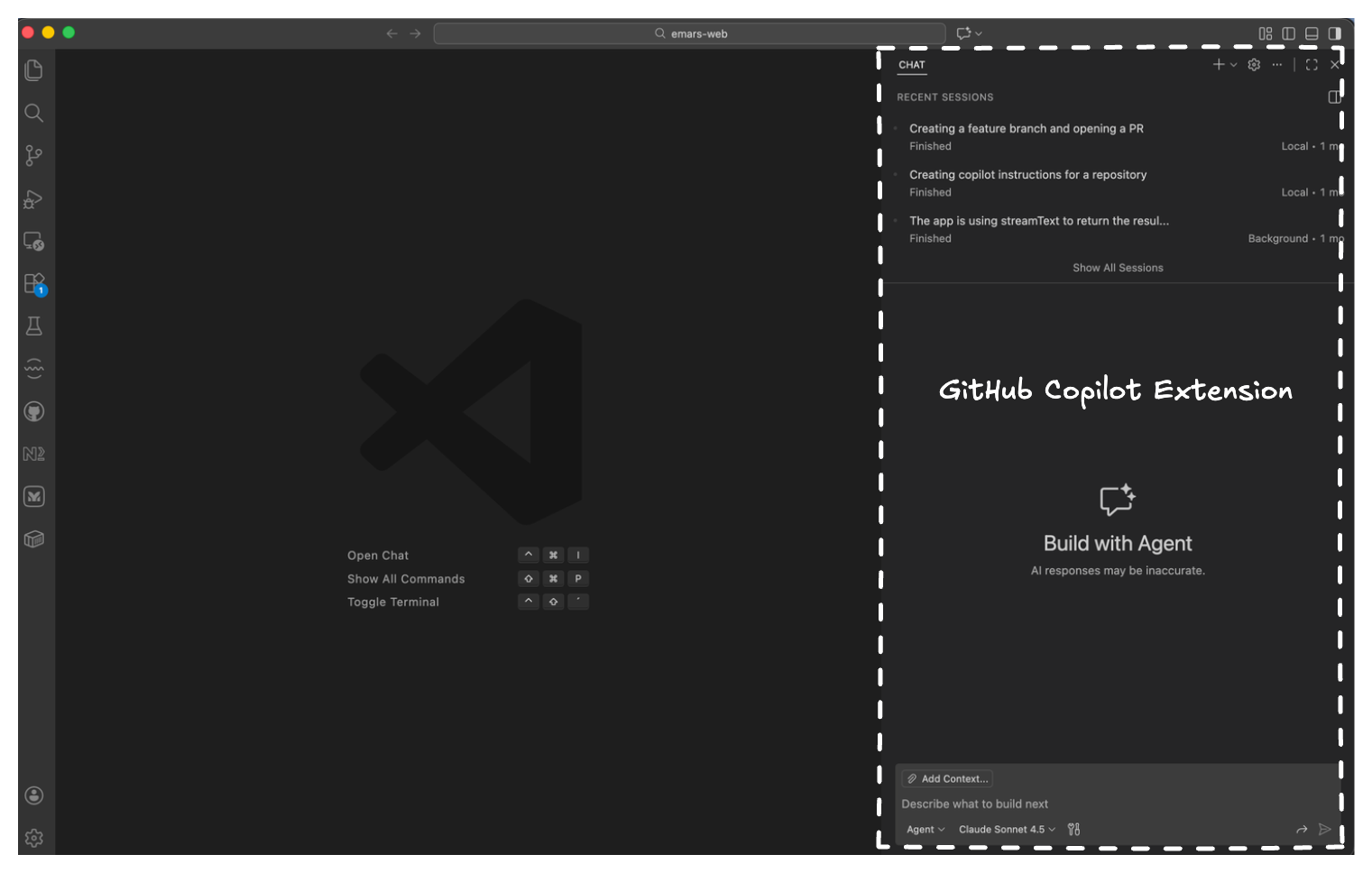
The most immediate advantage of sticking with VS Code and GitHub Copilot is friction, or rather, the lack of it. If you, like me, worked for years on VS Code, switching IDEs means unlearning countless muscle memory patterns. GitHub Copilot removes that barrier entirely. It’s simply an extension that installs into your existing VSCode setup and loads a sidebar on the right side, allowing you to leverage AI without abandoning the tool you know inside and out.
Access to the Best Models
With a single GitHub Copilot subscription, at a very competitive price, you gain access to the best AI models available. At the moment, Claude Opus 4.5 (unfortunately rated at 3x ) stands out as the most capable model for general coding tasks, but the beauty of Copilot is that you’re not locked into one. I switch between different models and providers often, depending on the task. Opus is my go-to for complex logic and architecture, but when I’m working on design work, I’ll switch to Gemini because it has a different sensibility and often produces more creative design solutions. This flexibility is valuable for developers who want to leverage the strengths of different AI systems.
Chat and Context Management
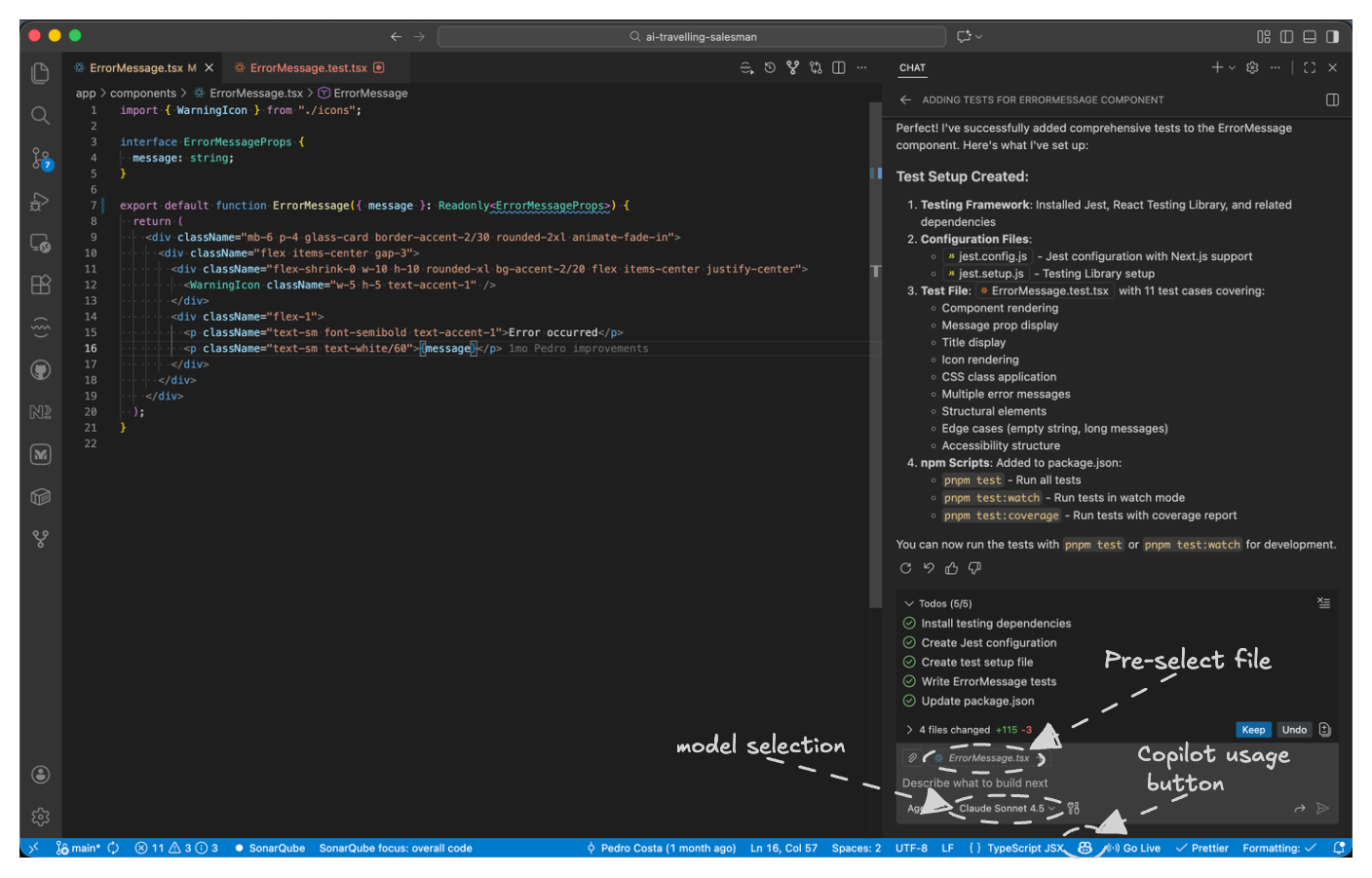
Working with Copilot’s chat sidebar is straightforward. The files you currently have open are pre-selected and ready to be added to the chat context with minimal friction. This makes it easy to build context without having to manually search for and include files. Additionally, GitHub Copilot includes a rollback feature that lets you jump back to previous checkpoints in a chat conversation, giving you the ability to explore different directions without losing your conversation history.
Parallel Development with Background Agents
One of Copilot’s most powerful features is the ability to run background agents that can tackle multiple features or bugs simultaneously. These agents leverage git worktree, ensuring that no two agents touch the same files, this eliminates merge conflicts and keeps your development workflow clean. You can focus on one task while letting agents work on others in parallel.
Repository-Level Instructions
GitHub Copilot respects the copilot-instructions (copilot-instructions.md) and the agents (AGENTS.md) markdown files placed in your repository root. These instructions are automatically loaded into the context, independent of which model or provider you choose. This is excellent for maintaining consistency across your team and ensuring that Copilot understands your project’s conventions and requirements without repeating them in every chat.
Cloud Agents and GitHub Integration
The integration with GitHub itself is genuinely excellent. You can trigger cloud agents directly from the GitHub mobile app or web interface, keeping you productive even when you’re away from your IDE. If you start a chat from a pull request, the PR context is automatically included in the conversation, making code review and discussion seamless.
The Missing Context Indicator
Despite all these strengths, there’s one notable gap: GitHub Copilot doesn’t provide visibility into what context is actually being used in the current chat. This is particularly frustrating given the “lost in the middle” problem, a well-documented issue where LLMs struggle to focus on crucial information placed in the middle of long prompts. Without seeing what’s in your context window, you can’t always be sure which files or instructions are influencing the AI’s responses. This can lead to unexpected behavior or recommendations that don’t align with your actual codebase state.
I believe this will be added soon; however, there is already a feature request for it.
Plan Mode
In GitHub Copilot, when you use this mode, the plan appears in the chat sidebar. You then review it and can explicitly choose to build it or create a markdown file to edit it. It’s functional, but it adds little friction because you’re context-switching between chat and file editing.
The Status Bar Placement Quirk
Another minor but annoying usability issue is the placement of the Copilot usage button, which shows your current budget consumption. It resides in the status bar, which would be fine, except if you’re like me and prefer to hide the status bar to gain extra screen space, this button becomes inaccessible. It’s a small thing, but it highlights how the feature feels a bit disconnected from the rest of the UI.
Cursor
A Smart Fork of VSCode
Cursor is built as a fork of VSCode, which was a strategic decision that deserves recognition. Rather than building an IDE from scratch, the Cursor team took a proven, stable foundation and focused their efforts on what matters most: the AI experience and how we program. This incremental approach allows them to innovate on the developer experience without getting bogged down in the complexity of building an editor from first principles. The result is an editor that feels familiar to anyone coming from VSCode, meaning the friction of switching is minimal. When you launch Cursor for the first time, you can import your existing VSCode configuration directly. This further reduces the switching cost and lets you bring your customisations, themes, and keybindings with you.
Two Distinct Views: Editor and Agents
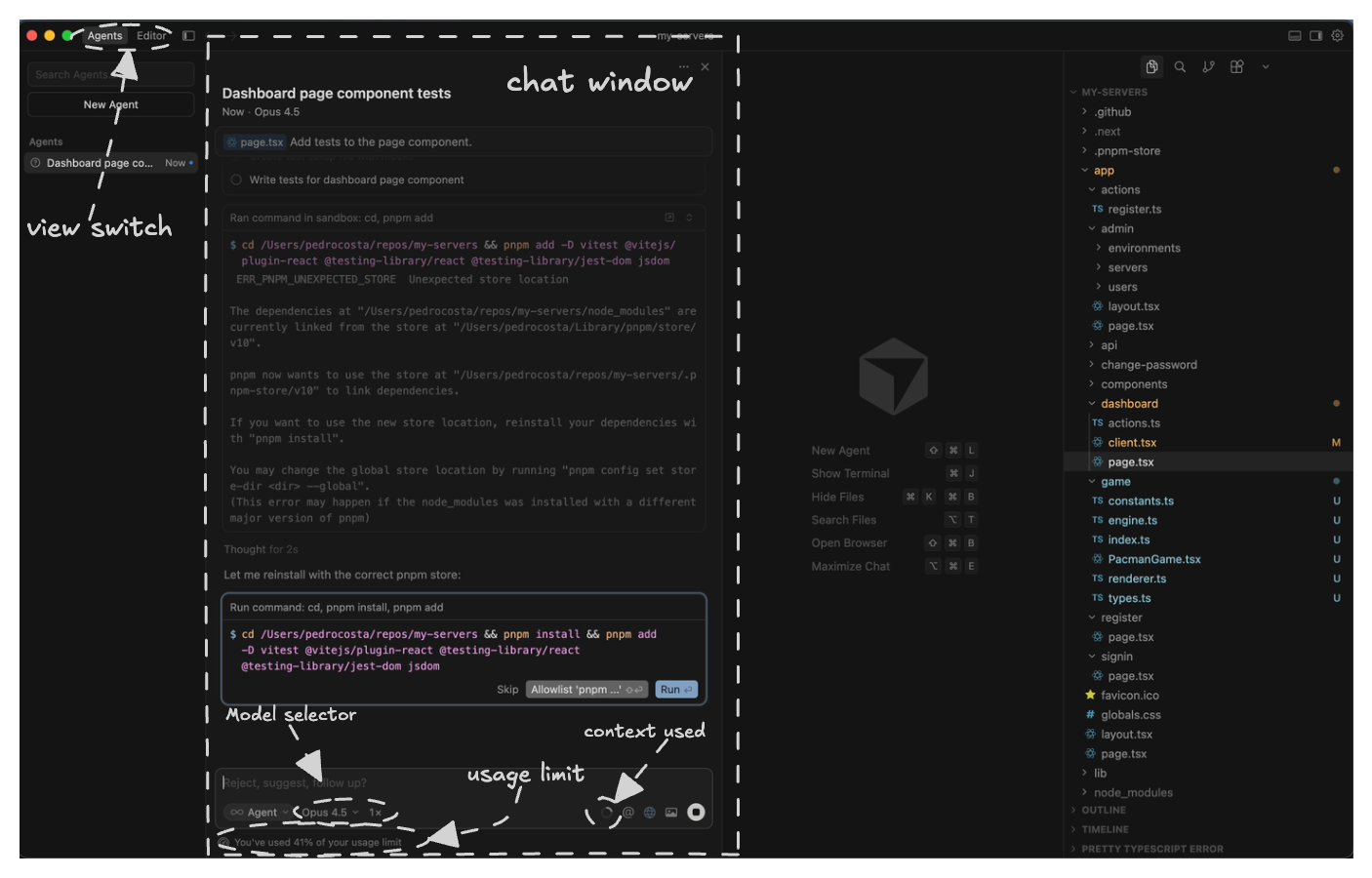
Cursor offers two different working modes, each suited to different workflows. The Editor view mirrors the VSCode experience, placing the AI chat sidebar on the right side. It’s similar to how GitHub Copilot presents itself. This view maintains the primacy of your code, with AI as a supporting tool.
The Agents’ view flips this dynamic. The chat is placed on the left side and becomes the protagonist of your workspace. This view is designed for a more agentic, exploratory workflow where you’re delegating more responsibility to the AI and iterating on its output. The view you choose depends on your working style and the task at hand.
Context Management with the @ Symbol
Adding files to the context in Cursor uses the @ symbol; you type it, select your files from the list, and they’re added to the chat. It’s relatively straightforward, though I personally miss GitHub Copilot’s approach of automatically pre-selecting open files at the top of the chat input.
Always-Visible Context and Usage
One of Cursor’s strongest usability features is that context and usage information are always displayed, regardless of which view you’re using. This addresses one of the pain points I mentioned with GitHub Copilot. You can always see what’s in your context window and how much of your budget you’re consuming. This transparency is invaluable, especially given the “lost in the middle” problem with LLMs. You’re never left guessing about what the AI actually has access to.
Superior Tab Completion and Predictive Editing
Cursor’s tab completion is pretty good. It will suggest multiple lines of code and analyze your codebase holistically to generate suggestions that align with your actual patterns and conventions. It even tries to guess where you’re going to edit next; it displays a little hint saying “TAB to jump here” that sends the cursor to the next edit place.
Plan Mode: Cursor’s Superior Approach
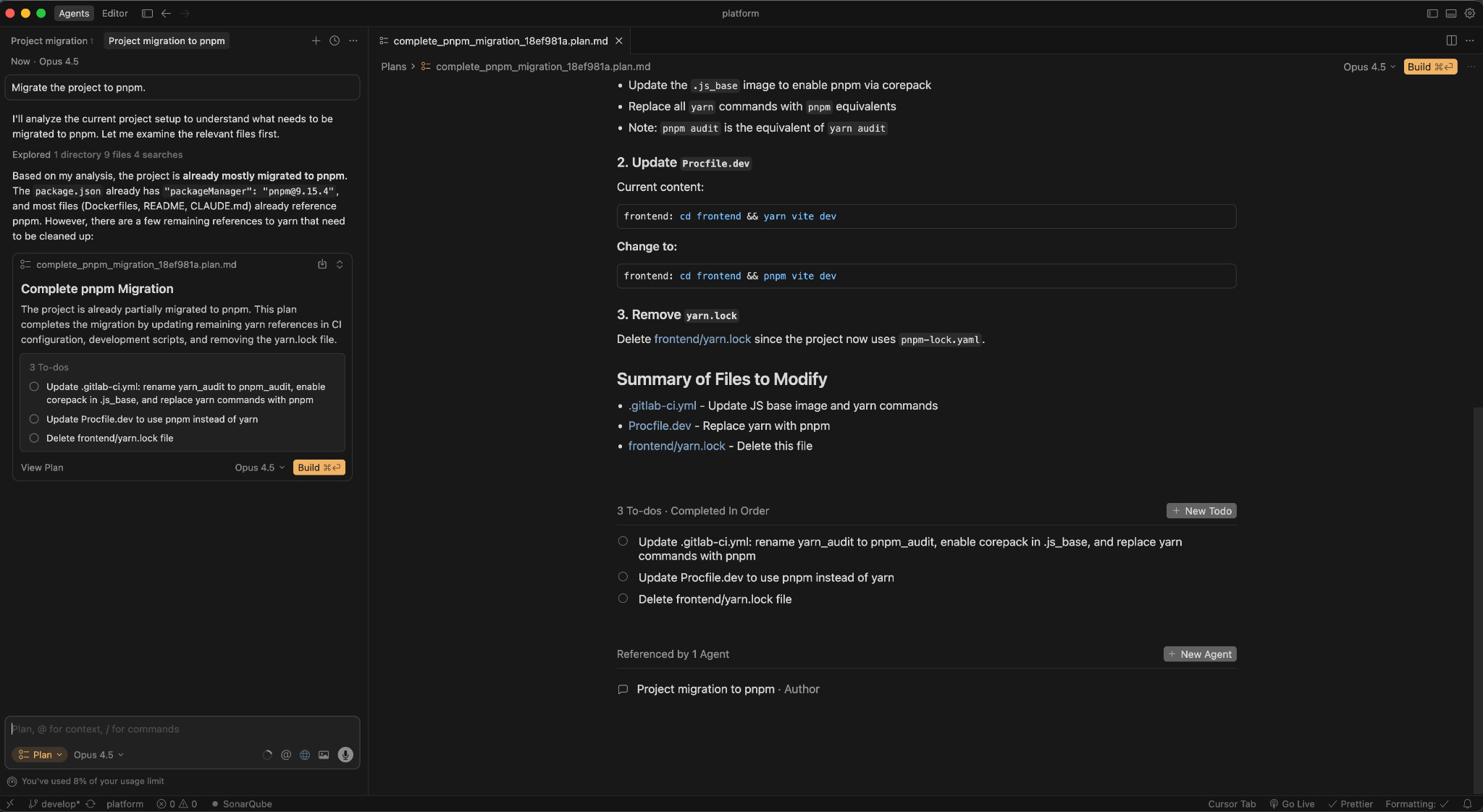
Cursor’s approach to the plan mode is noticeably more polished. When you invoke it, it asks you questions about the implementation details if needed and gives you some options for the answer that are clickable. It basically guides the user until the final plan.
The only thing I miss in this approach is having an option to provide your own answer in cases where the suggested ones are not good enough.
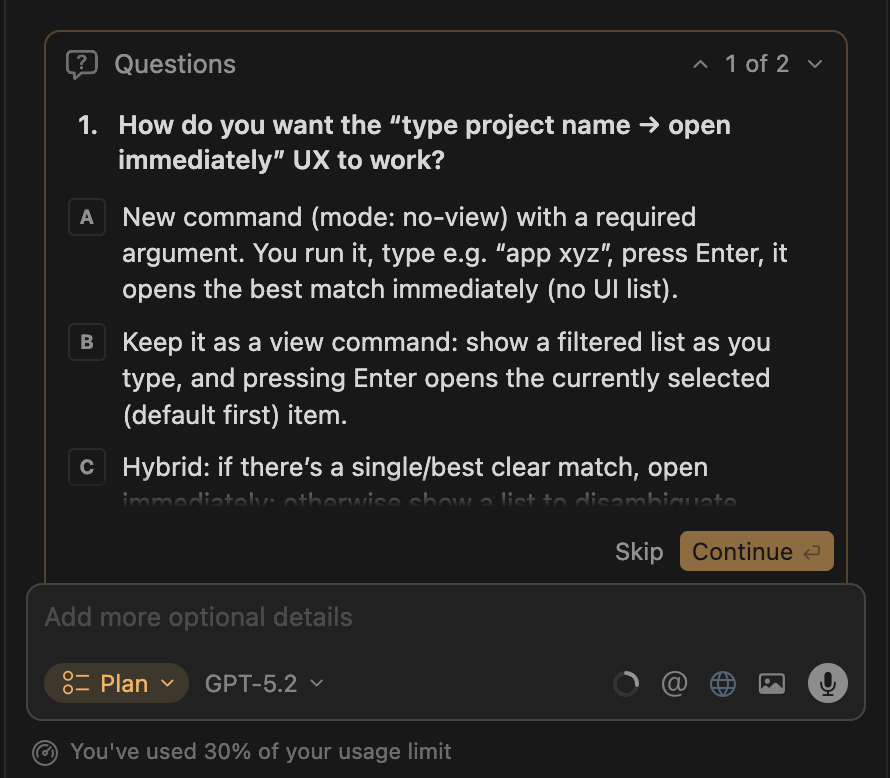
When thinks it has enough information for the plan it automatically opens the generated markdown file directly in your main editor view. From there, you can seamlessly add, remove, or modify TODOs. The plan becomes a first-class artifact in your IDE. You can see the full structure clearly, make edits inline, and immediately run the plan if needed. The entire experience feels integrated rather than bolted on.
Cursor’s Cloud Agents
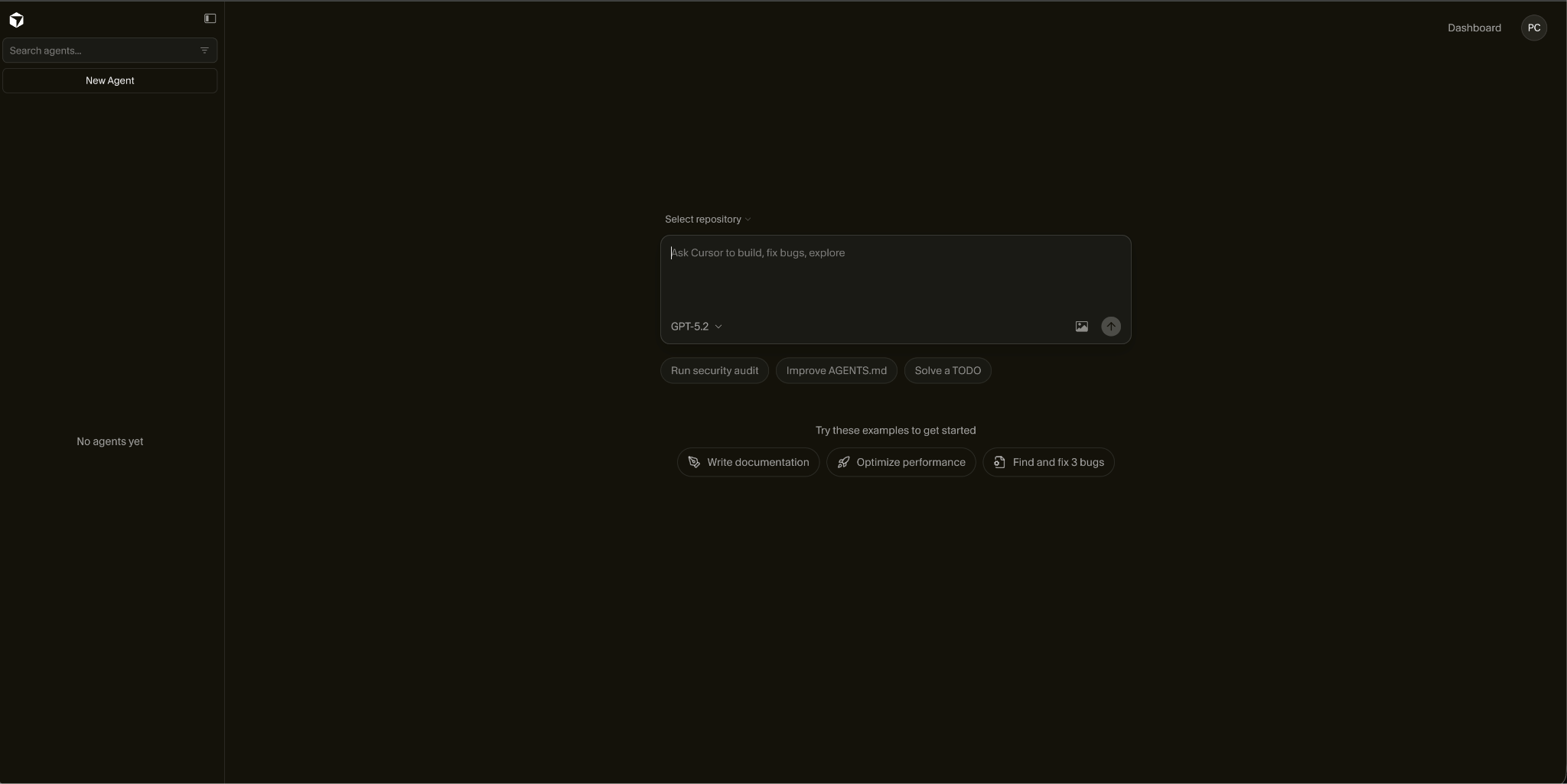
Cursor also supports cloud agents. You can trigger new agents from the Cursor IDE or by visiting the Cursor website and selecting the repository and branch the agent should work on. You can assign and follow the task’s progress from Slack or Linear.
Cursor Rules: Flexible, Layered Guidance
Cursor offers a powerful feature called Rules that functions similarly to GitHub Copilot’s instruction files. When you create and apply rules using markdown files, their contents are included manually or automatically based on their relevance in the model context, ensuring the AI receives consistent guidance for code generation, interpreting your edits, and assisting with workflows. It is applied independently of the model you select, and you can define several rules and scope them differently.
Model Flexibility and the Composer Option
Like GitHub Copilot, Cursor lets you switch between different models and providers. However, Cursor also offers its own model called Composer, which sits in an interesting middle ground. It’s not quite as intelligent as Claude Opus 4.5, but it’s significantly faster and capable enough for most development tasks. For workflows where speed matters more than raw capability, like iterating quickly or handling routine coding work, Composer is an excellent choice.
VSCode with Claude Extension
Limited to Anthropic Models Only
Unlike GitHub Copilot and Cursor, which allow you to flexibly switch between different AI models and providers based on the task at hand, the Claude extension locks you into Anthropic’s models exclusively. If you want the flexibility to use Claude Opus for complex architecture work, switch to Gemini for creative design solutions, or experiment with other models depending on your needs, the extension doesn’t support that.
If you are fine with using only models from Anthropic, this is not a significant downside since their models are the state of the art at the moment.
Direct Model Provider Access: Transparent Pricing
One genuine advantage of using VSCode with the Claude extension is direct access to Anthropic’s API, you’re connecting straight to Claude’s model provider with no intermediaries. This differs fundamentally from both Cursor and GitHub Copilot, which route requests through their own backend infrastructure. With that, you get more transparent pricing. You understand your usage and rate limits directly from Anthropic, without guessing what Cursor or Copilot’s intermediary layers might be throttling.
Low Friction, But at What Cost?
Like GitHub Copilot, the Claude extension for VSCode removes the friction of switching IDEs. You simply install the extension into your existing VSCode setup, and you gain access to Claude’s capabilities directly within your editor. If you’re already invested in VSCode’s workflow, this is an appealing option on paper. No new muscle memory, no learning curve on a different editor.
However, the Claude extension feels like exactly what it is: a port of Claude Code’s CLI tool into VSCode’s extension framework. Rather than being designed from the ground up as an IDE experience, it comes across as a forced adaptation that prioritizes functionality over usability.
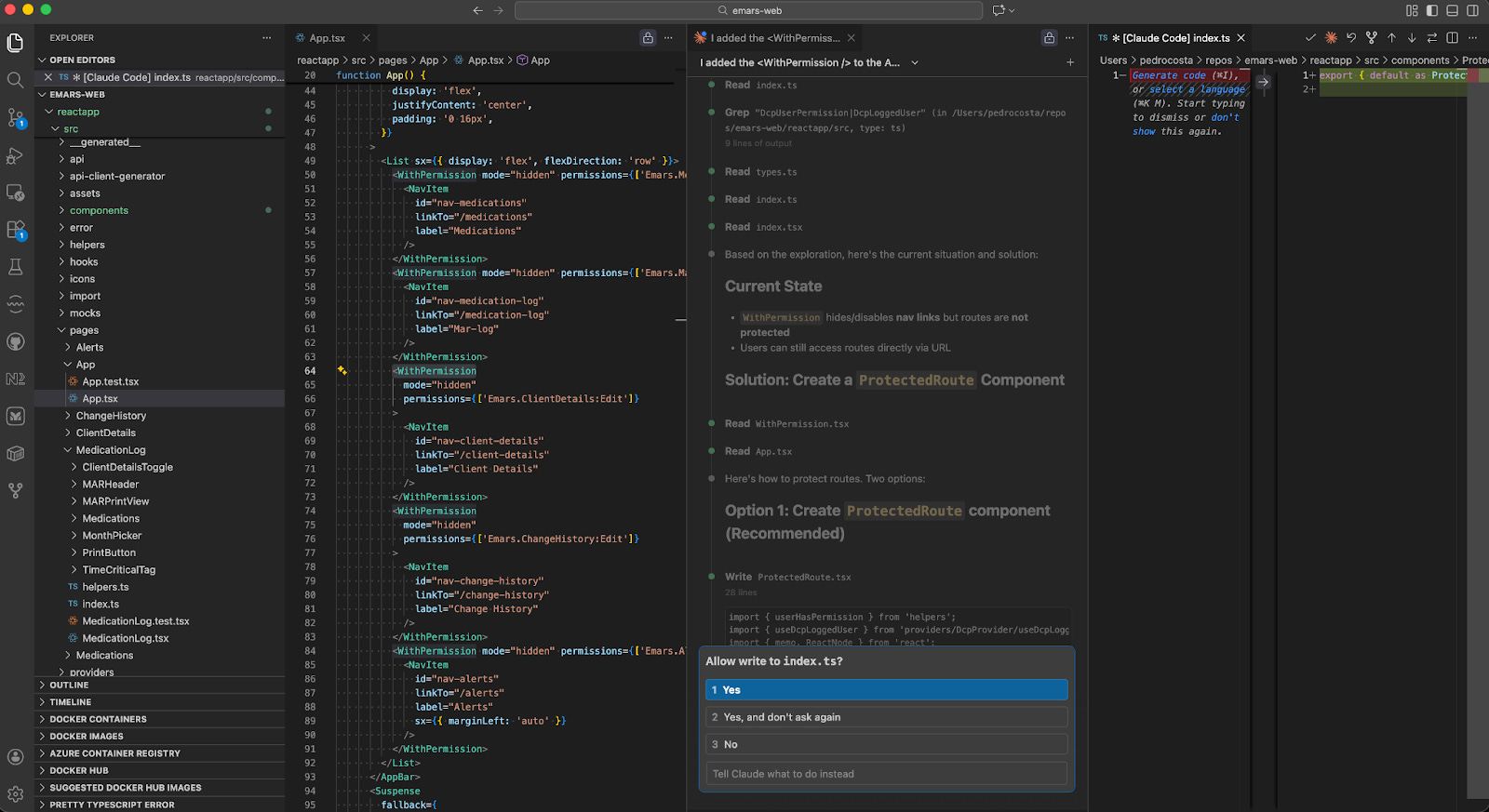
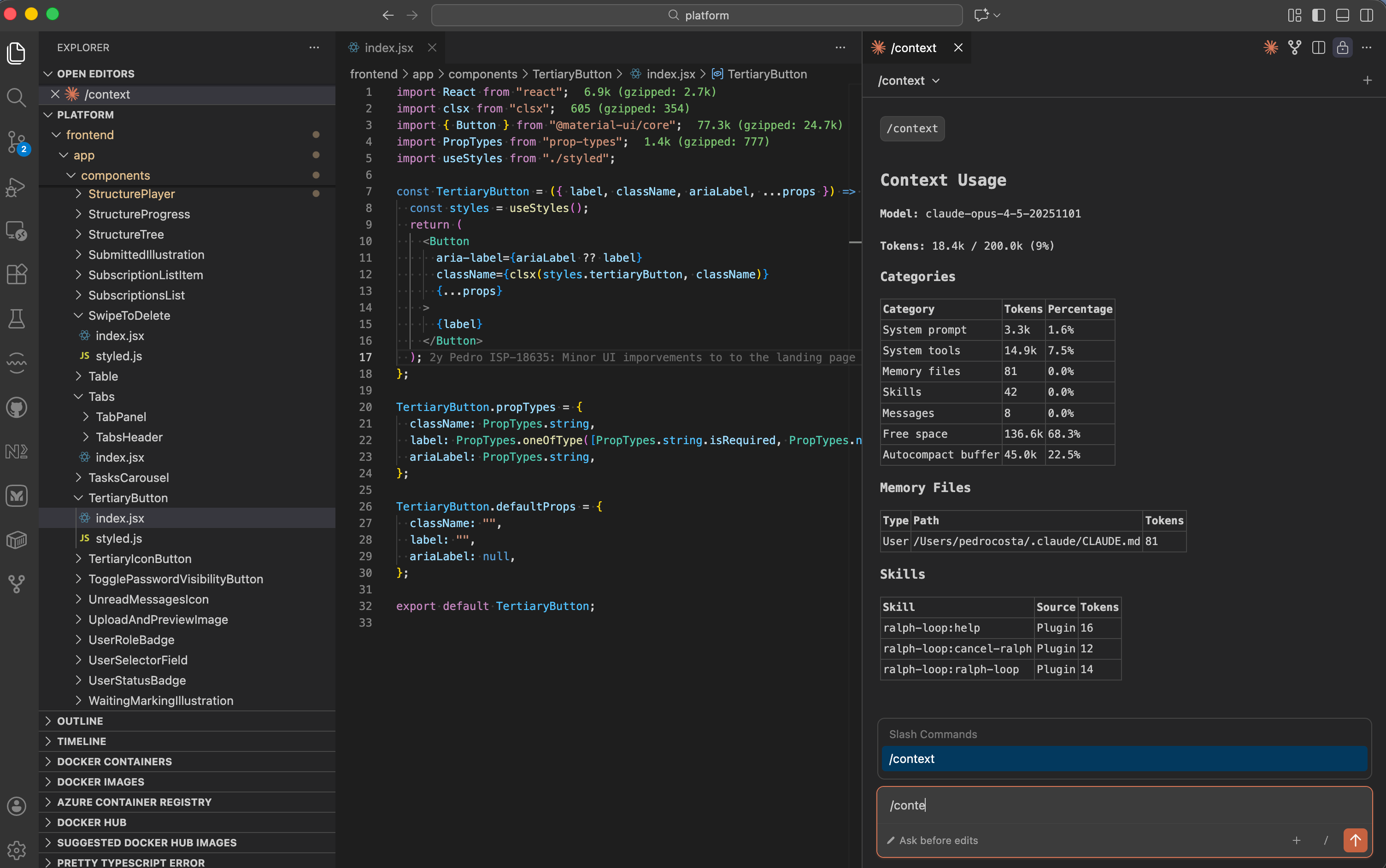
You can basically invoke commands using the same approach as in the CLI tool, using the slash (”/”) and typing the command you need, like “/context.” It’s not the best UX, but it might look familiar to engineers who have been using Claude in the terminal.
The Better Alternative Within the Extension
Interestingly, the extension includes an option labeled “Launch Claude in the terminal instead of the native UI.” This button essentially acknowledges the extension’s own limitation by launching the full Claude Code CLI experience inside VSCode’s integrated terminal.
If you want to use Claude with VSCode, skip the extension. Instead, use Claude Code directly from the terminal and then switch back to VS Code to review and edit the changes Claude does.
Claude Instructions: Anthropic’s Standardisation Leadership
Claude also supports markdown files (CLAUDE.md or the open format AGENTS.md) in your repository for defining consistent instructions and context. It’s similar to Copilot’s instructions and Cursor’s Rules files. What’s notable here is that Anthropic has been leading the definition of the specification for how these instruction files work across different tools. For instance, Copilot loads CLAUDE files into context alongside its own copilot-instructions file. This cross-compatibility demonstrates Anthropic’s influence in establishing best practices for how AI agents should handle project-level guidance. One more example of Anthropic leading the standardization of agent instructions is the Agent Skills markdown files you can add to your project. They package domain expertise for your models, such as Frontend Design or a Database Expert, giving specific instructions about how to proceed in that area. Copilot recently released support for skills, and Cursor will have it soon since it’s already available on nightly builds.
Claude Code: Best for Autonomous, Multi-Agent Workflows
While the VSCode Claude extension has UX limitations, it’s worth noting that the CLI tool is very powerful, allowing you to extend the capabilities of your agents with plugins like the now-famous ralph-loop or by using hooks that allow you, for example, to customise the notifications or the automatic formatting of your project files. If your workflow involves asynchronous, long-running coding tasks that benefit from minimal human supervision, Claude Code remains the best option.
Wrapping up
Software engineering feels fun again, genuinely fun. The last time I saw myself coding at 04:00 am this way was when I first started programming. With these AI tools, we can accomplish significantly more, and there’s a tangible sense of being a 10x engineer. We’re working at a level of productivity that felt impossible just a few years ago.
All of the options we reviewed support MCP tools, and it’s very easy to use them to connect your agent to the Jira or Linear board and then load your ticket description into the context. Then you can ask your agent to use Chrome to test your changes.
You can even connect your AI-powered IDE to Sentry using the MCP protocol and ask an agent to fix the issues reported while you drink a coffee.
It seems our jobs are going in the direction where the most important skill will be being able to provide the best instructions to the agents and do the final code review.
The three solutions we reviewed here work pretty well. Whether you’re using them, you get a solid experience for delegating work to AI and having it handle multiple features or bugs in parallel. This is a strong signal that agent-based development has matured significantly and is now a viable working pattern.
If I need to choose just one, I would go with Cursor. The entire product has been built around the AI experience. Every design decision, from the dual Editor and Agents views to the always-visible context indicator, reflects a deep understanding of how developers actually want to work with AI. The context indicator eliminates the anxiety of the “lost in the middle” problem and gives you genuine control over your interactions.
Cursor’s plan mode encourages you to refine the plan thoroughly before execution, while Copilot’s feels like an optional extra. If meticulous task breakdown is part of your workflow, Cursor’s implementation will feel significantly more natural.
Combine that with superior tab completion, predictive editing, and a familiar VSCode-like interface, and you have an IDE that doesn’t just add AI to your workflow, it rethinks your workflow around AI.
Despite being a small team compared with VS Code and GitHub Copilot, Cursor is now one of the preferred ways of working for many engineers. Let’s see if it can keep its position in the following months.
GitHub Copilot remains a solid alternative, especially if you’re deeply invested in VS Code and want to minimize switching friction. The ability to access multiple best-in-class models with a single subscription (between 10$ and 39$ - the cheaper option) is genuinely valuable, and the integration with GitHub itself is excellent. If you’re working in a team environment or need to review code on GitHub’s web interface, Copilot’s cloud agents and PR integration are compelling. It’s a mature, well-integrated solution that works reliably.
VS Code with Claude can also be a solid option if you, like me, enjoy the CLI interface, because the UI extension is still in the early days, and it’s not built to be included in an IDE.
The model I like to use the most is Opus 4.5, so I will combine the subscriptions of Cursor Pro+ (60$ month) and Claude Code Max 20x (200$ month) for my day-to-day coding environment. That will allow me to edit and review the model changes in a nice IDE when I want - Cursor, while also having access to the best ecosystem with the latest industry-leading products and models. Alternatively, if you don’t want to spend money on two different subscriptions like me, you can also use your Claude subscription to generate an API key and add it to GitHub Copilot or Cursor.